

What it’s for
Agents lists the AI agents working for your organisation, the person accountable for each one, and how their recent runs went. Managers use it to register agents and keep track of the work waiting for their review; admins use it to see every agent across the organisation. It’s there when your organisation’s plan includes the agents feature.How to use it
Register an agent
- Select Register agent.
- Give it a Name, and choose its Manager (accountable person). Admins can choose anyone in the HR data; members can only register agents they manage themselves.
- Choose its Autonomy: from suggesting only, through acting after approval or acting and reporting, to acting on its own within its responsibilities.
- Paste its Instructions: the prompt, system instructions or SKILL.md it works from. Its responsibilities and skills are extracted from these.
- Select Register. The agent’s page opens as a draft, ready for you to extract its skills and submit it for approval. See Agent details.
Check on runs
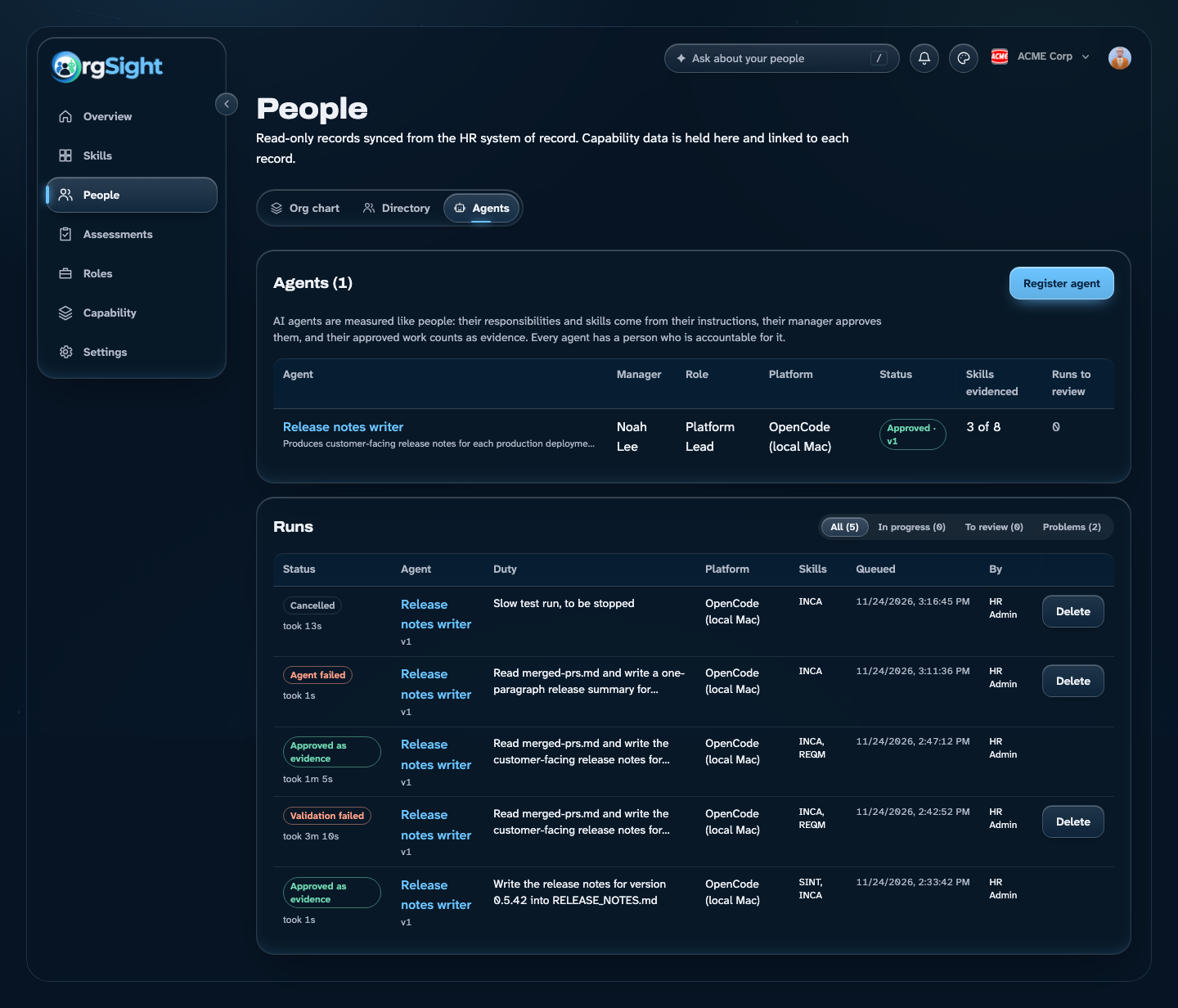
- Look at Runs. Each run shows where it stands, how long it waited, ran or took, the agent and version, the duty, its platform, the skills it used, and who queued it.
- Use the filter to show All, In progress, To review or Problems.
- For a run awaiting your review, select Review to open the agent’s page and approve or reject it.
- Select Stop (or Cancel while it’s queued) to stop a run, or Delete to remove a run that failed, was stopped or was rejected. Each asks you to confirm first.
Features
- Agents table: each agent’s name and purpose, its manager (marked You if it’s you), its role, the platform it runs on, its approval status and version, how many of its skills have evidence, and how many runs wait for review.
- Run status: Waiting for the runner, Queued: no runner connected (nothing is picking it up), Running with a live clock, Overdue (well past its timeout: the runner has likely stopped), Agent failed, Validation failed, Awaiting review, Approved as evidence, Rejected and Cancelled.
- Filters: In progress shows queued and running work; To review shows runs that passed validation and wait for a manager; Problems shows failures, overdue runs and queues no runner is taking.
- Stop and Delete: for the agent’s manager or an admin. Runs approved as evidence and runs awaiting review can’t be deleted.
- Members see agents managed by themselves or their direct reports; admins see every agent.
Why it works this way
Agents are a separate kind of worker, kept apart from the people synced from your HR system, but every agent has a person who is accountable for it and its work. That’s why registering one starts with choosing its manager, and why only that manager (or an admin) can run it or sign off its work. Showing every run’s status in one place makes the checks visible: a run only becomes evidence after it completed, passed its validation and was approved by its manager. Evidence is the record behind an agent’s skills, so it can’t be deleted.Tips
- Queued: no runner connected means no runner has checked in for that platform in the last minute. Start the runner shown on the platform under Integrations.
- Turn on the Agents switch on the Org chart to see each agent under its manager.
- Agents’ evidenced skills appear in the Skills table and lift capability maturity “with agents”.